Engraving Portrait Generator

Upload a photo and turn it into a classic engraving portrait with crosshatched lines, fine stippling, and a historic black-and-white feel.

What makes a great engraving portrait

A strong engraving portrait generator focuses on line work, contrast, and likeness — not color or photographic texture.

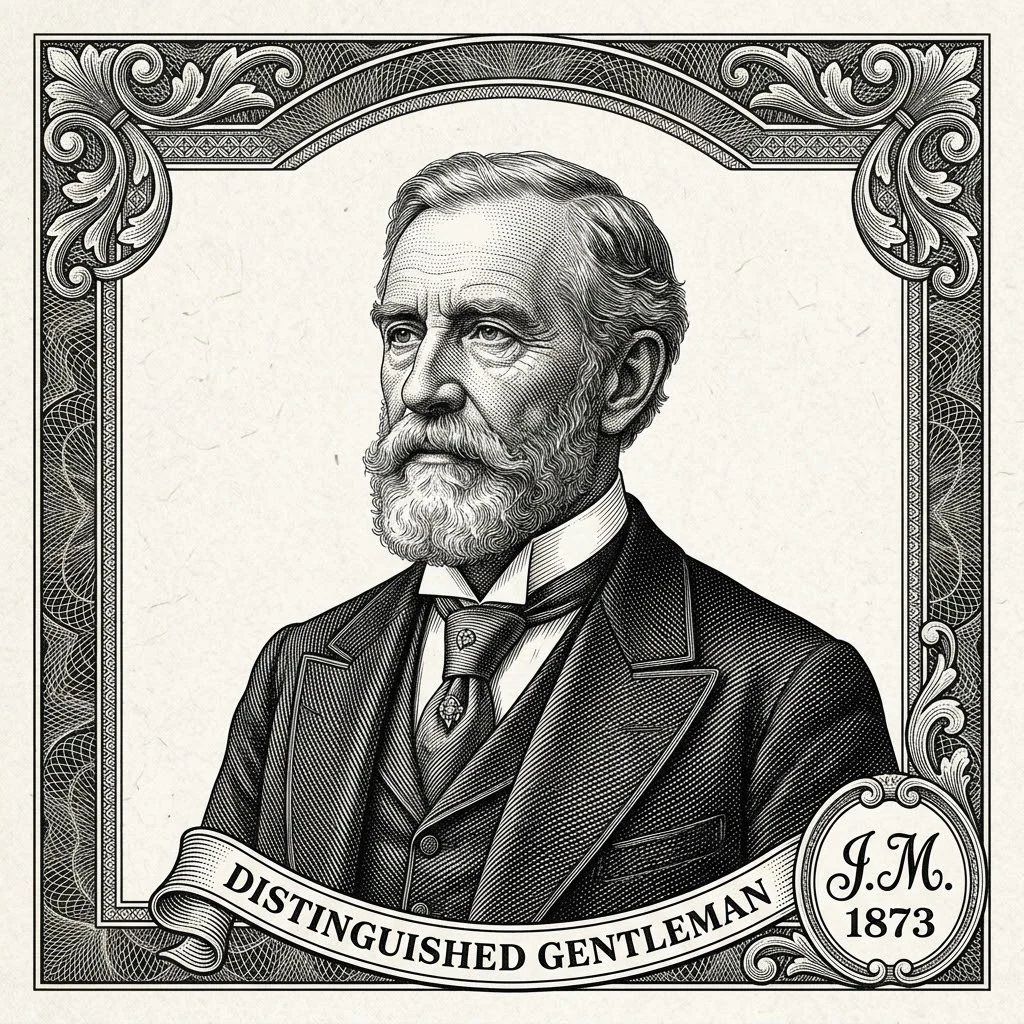
Classic engraving portrait generator example with crosshatched ink shading

Classic Engraving

Crosshatched shading on a warm paper background

The best engraving portrait generator online free results come from clean black ink lines, fine crosshatching for mid-tones, and a slightly aged paper background that mimics 19th century banknote portraits.

CrosshatchingLine workBanknote feel
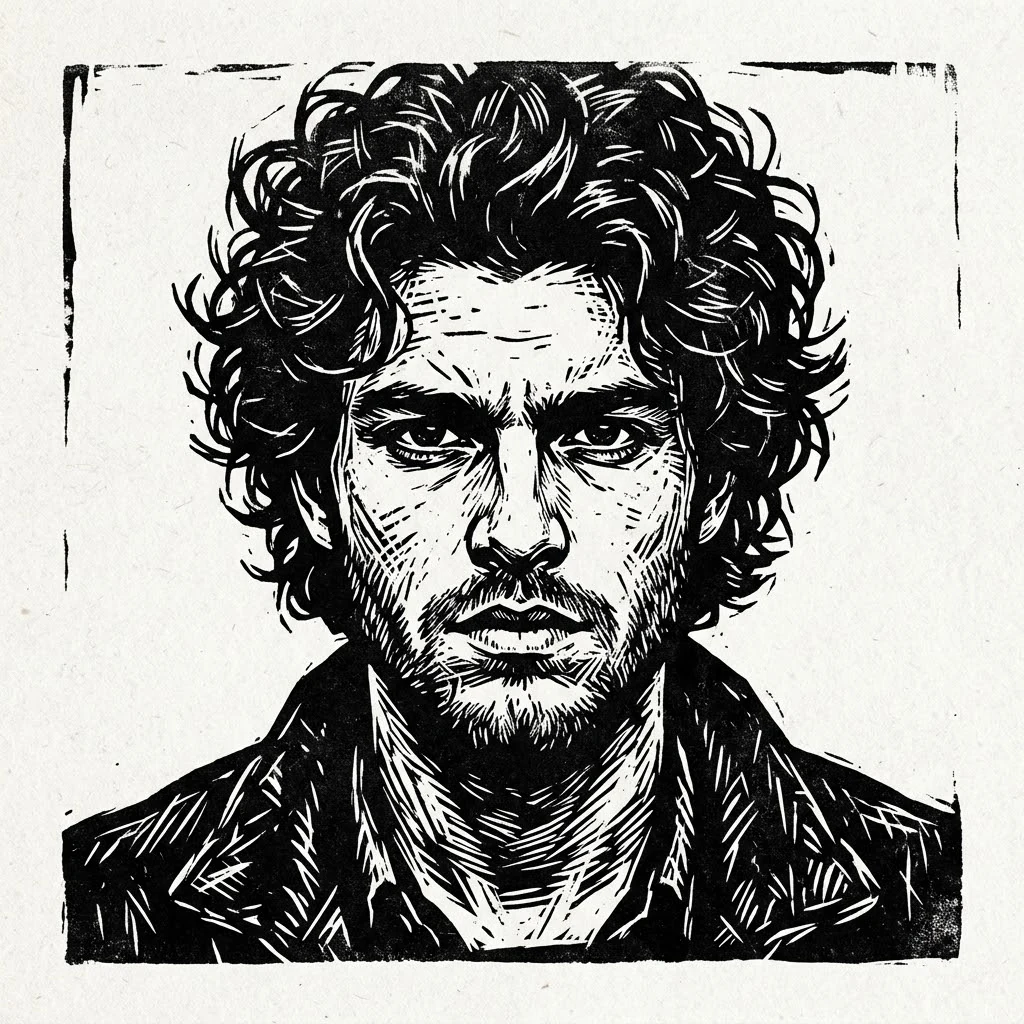
Engraving portrait generator app preserving subject likeness in a line art conversion

Likeness Preserved

Keep face structure while removing photo detail

A free engraving portrait generator should still look like the subject. The prompt is tuned to preserve eyes, jawline, hairline, and pose while replacing photographic shading with hatched line tones.

Portrait fidelityFace structurePose retained
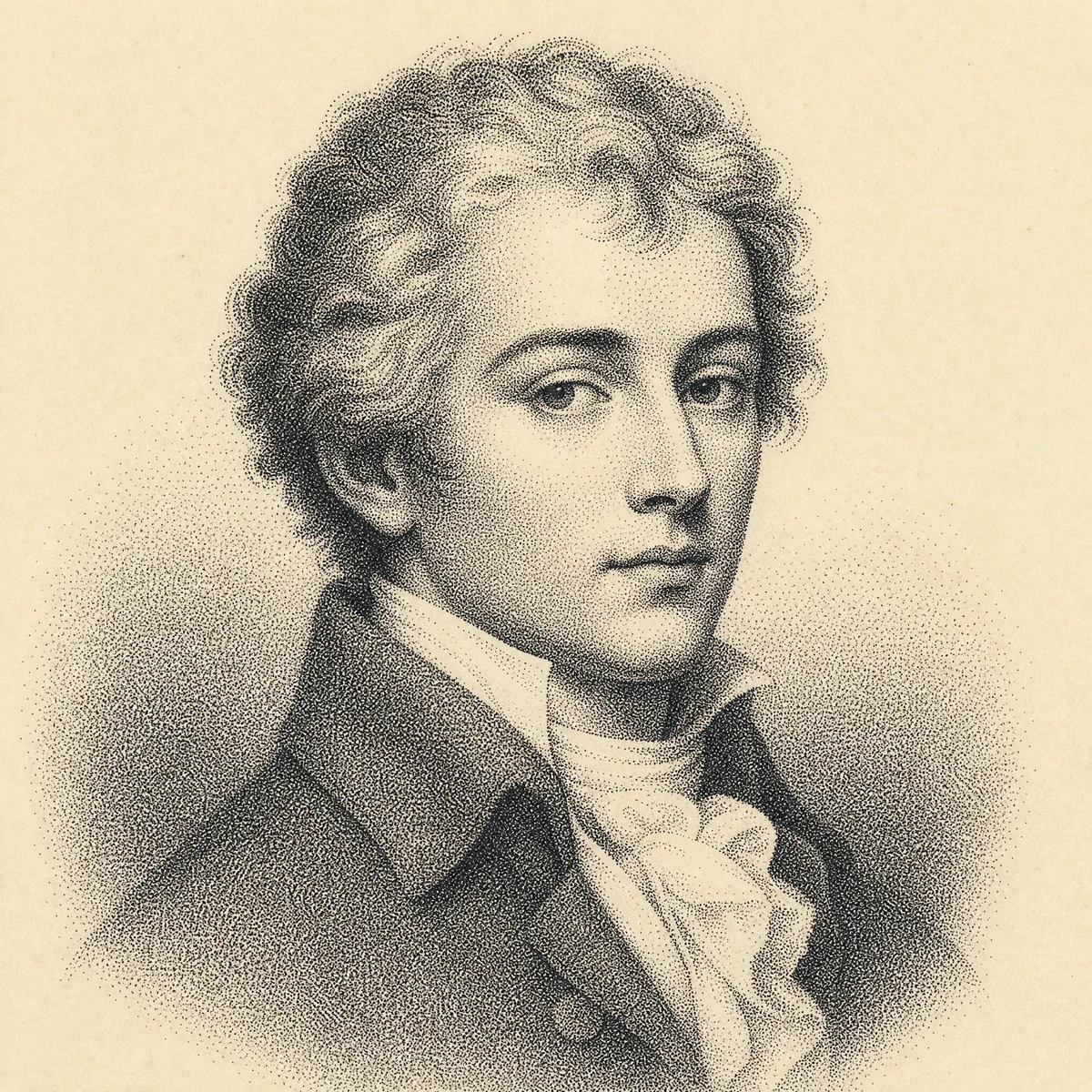
Convert image to engraving online free demonstration with photo and engraved output

Image to Image

Convert image to engraving online free in one click

Switch to image-to-image mode, drop in any photo, and the engraving portrait generator software workflow will convert image to engraving online free — no installs, no plugins, no subscription needed to try.

Photo to engravingImage to imageOnline tool
Workflow

How to use the engraving portrait generator online

Four short steps to turn any photo into a clean engraving portrait — works in your browser with no install, free to start.

1

Upload your portrait photo

Start with a clear, well-lit portrait. Front-facing or three-quarter angles convert most cleanly to engraved line art.

2

Keep or tune the engraving prompt

The default prompt produces a copperplate banknote look. Adjust it for woodcut, etching, scratchboard, or stipple variants.

3

Generate with GPT Image 2

The best results come from sending your photo as an image-to-image request with a strong style prompt.

4

Refine line density and contrast

If lines feel too soft or too busy, ask for finer hatching, fewer mid-tones, deeper shadows, or sharper contour outlines.

Engraving portrait prompt ideas

Use these directions when you want a specific kind of engraving portrait look from the generator.

Engraving Portrait Generator FAQ

Common questions about turning photos into engraving portraits with our online tool. Use the engraving portrait generator when the final image needs to read like an etched print rather than a smooth AI portrait.


Try the engraving portrait generator now

Upload a photo and create a clean black-and-white engraving portrait in seconds — free to start, no install, no engraving portrait generator software to download.