MS Paint Image Generator

Upload an image and redraw it as a deliberately terrible MS Paint-style mouse drawing.

What makes a good MS Paint AI image

MS Paint prompts work best when you ask for simple structure instead of polished illustration. Use MS Paint when you want the image to look intentionally plain, awkward, and mouse-drawn. A good MS Paint prompt says MS Paint style early, repeats the white canvas and shaky outline requirements, and asks for flat color instead of polished illustration. The MS Paint generator is useful for meme redraws, product doodles, reaction images, and intentionally bad reference-image edits because the MS Paint look should feel simple, low-resolution, and handmade. If the result becomes too clean, add more MS Paint direction: uneven proportions, wobbly black lines, primitive shapes, no gradients, no cinematic lighting, and no professional polish. For image-to-image work, MS Paint should preserve the subject while changing the finish into a crude computer drawing. Keep the MS Paint prompt short enough to follow but specific enough to prevent a glossy AI illustration.

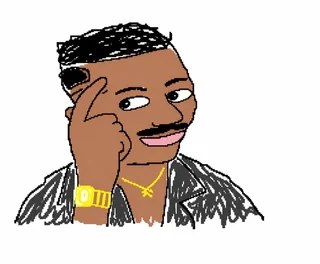
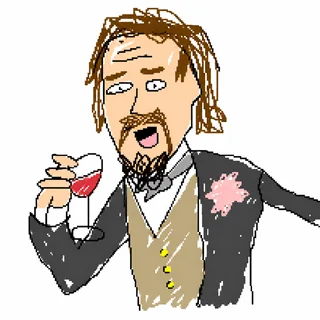
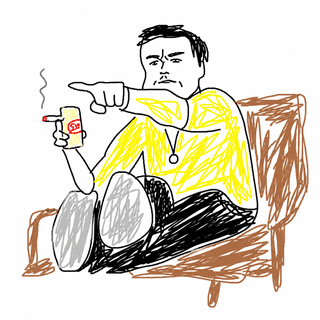
MS Paint style AI image generator example

Classic Look

White canvas, rough outlines, and flat colors

The strongest MS Paint results avoid cinematic polish. Ask for a plain white background, uneven black lines, basic fills, and visible mouse-drawn awkwardness.

White backgroundFlat colorsMouse drawing
Prompt workflow for MS Paint AI image generation

Prompt Control

Describe the subject first, then the bad drawing style

Start with the thing you want to see, then add MS Paint style, drawn with a mouse, shaky outlines, uneven proportions, and no polish.

Prompt recipeClumsy linesSimple shapes
Reference image workflow for MS Paint redraws

Image Redraws

Upload a reference image and redraw it badly

Switch to image-to-image when you want the AI to keep the original subject recognizable while turning it into a deliberately clumsy MS Paint redraw.

Image to imageReference redrawBadly drawn
Workflow

How to generate MS Paint images

Use a short prompt structure so the model knows both the subject and the drawing style.

1

Upload a reference image

Start with the image you want to redraw in a rough MS Paint style.

2

Keep the bad-drawing prompt

Use the default prompt for a clumsy white-background result with shaky mouse-drawn lines.

3

Generate with GPT Image 2

The page sends image-to-image requests through the GPT Image 2 image model.

4

Refine for worse lines

If the result is too clean, ask for more childish, uneven, low-resolution, or intentionally awkward details.

MS Paint prompt ideas

Use these prompt directions when you want a specific kind of simple MS Paint result.

MS Paint AI Image Generator FAQ

Common questions about creating MS Paint style AI images.


Create an MS Paint AI image

Generate a simple, funny, mouse-drawn image in classic MS Paint style.