Remove Glasses Glare to Seed Clean Visuals

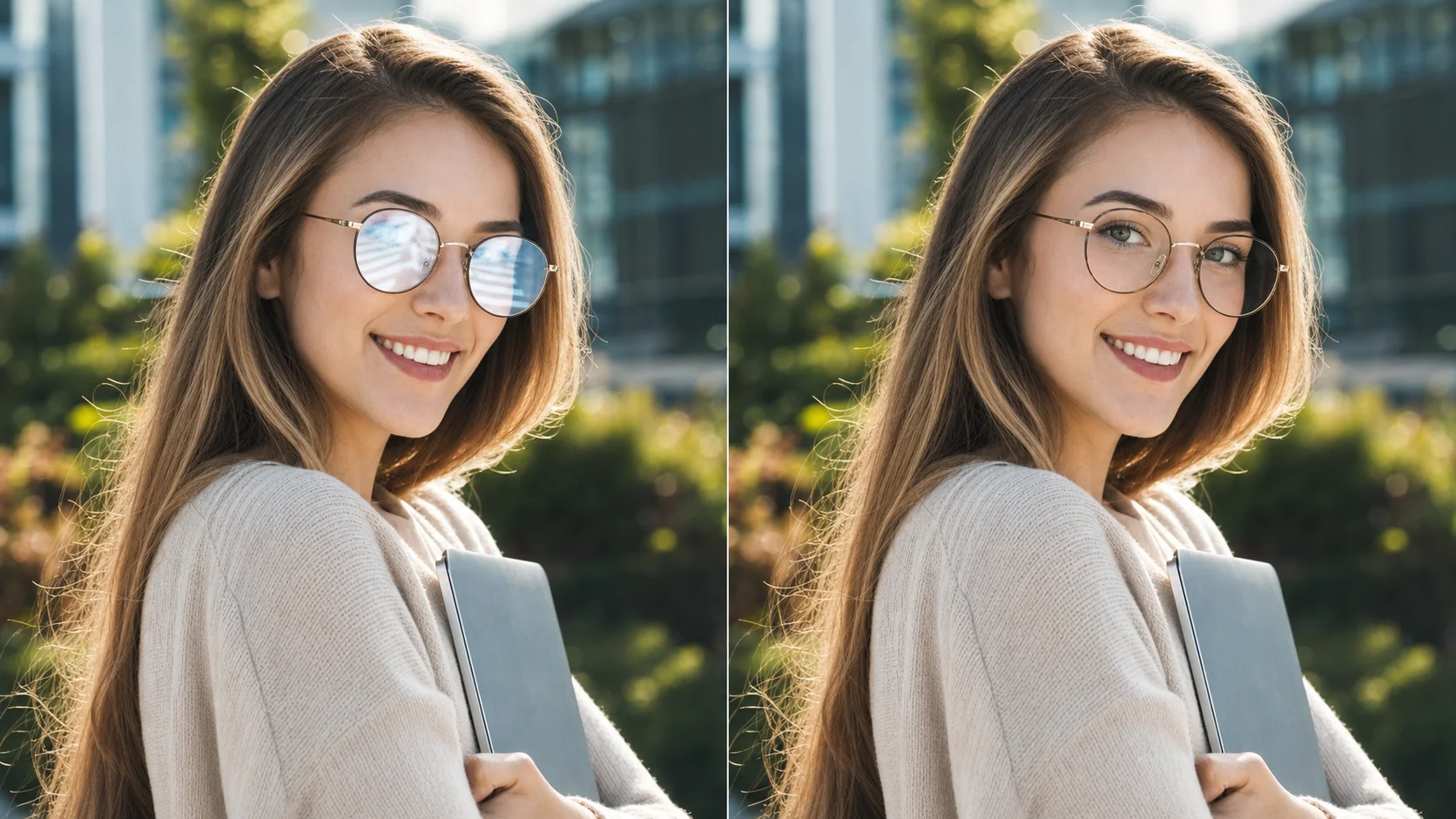
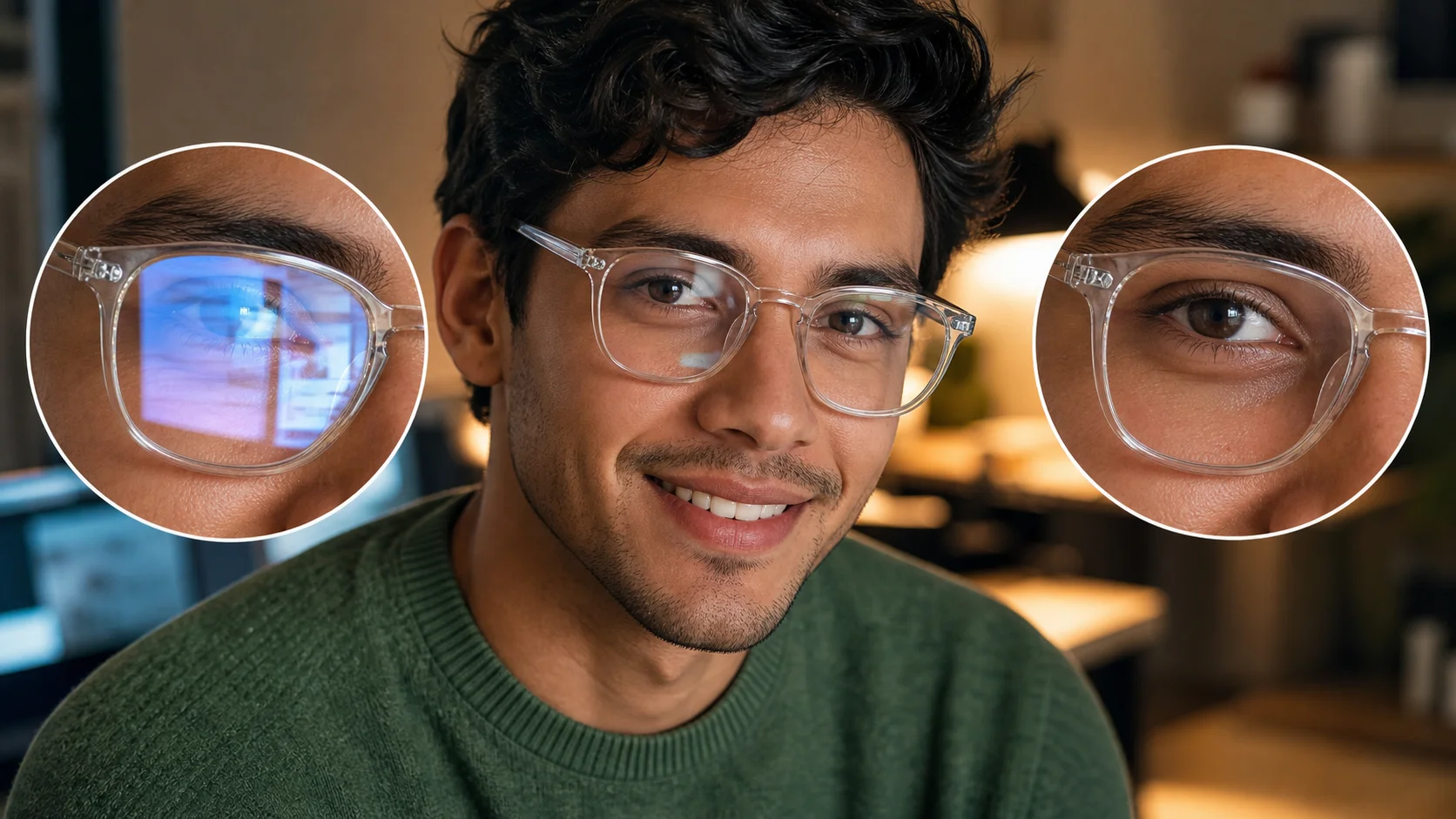
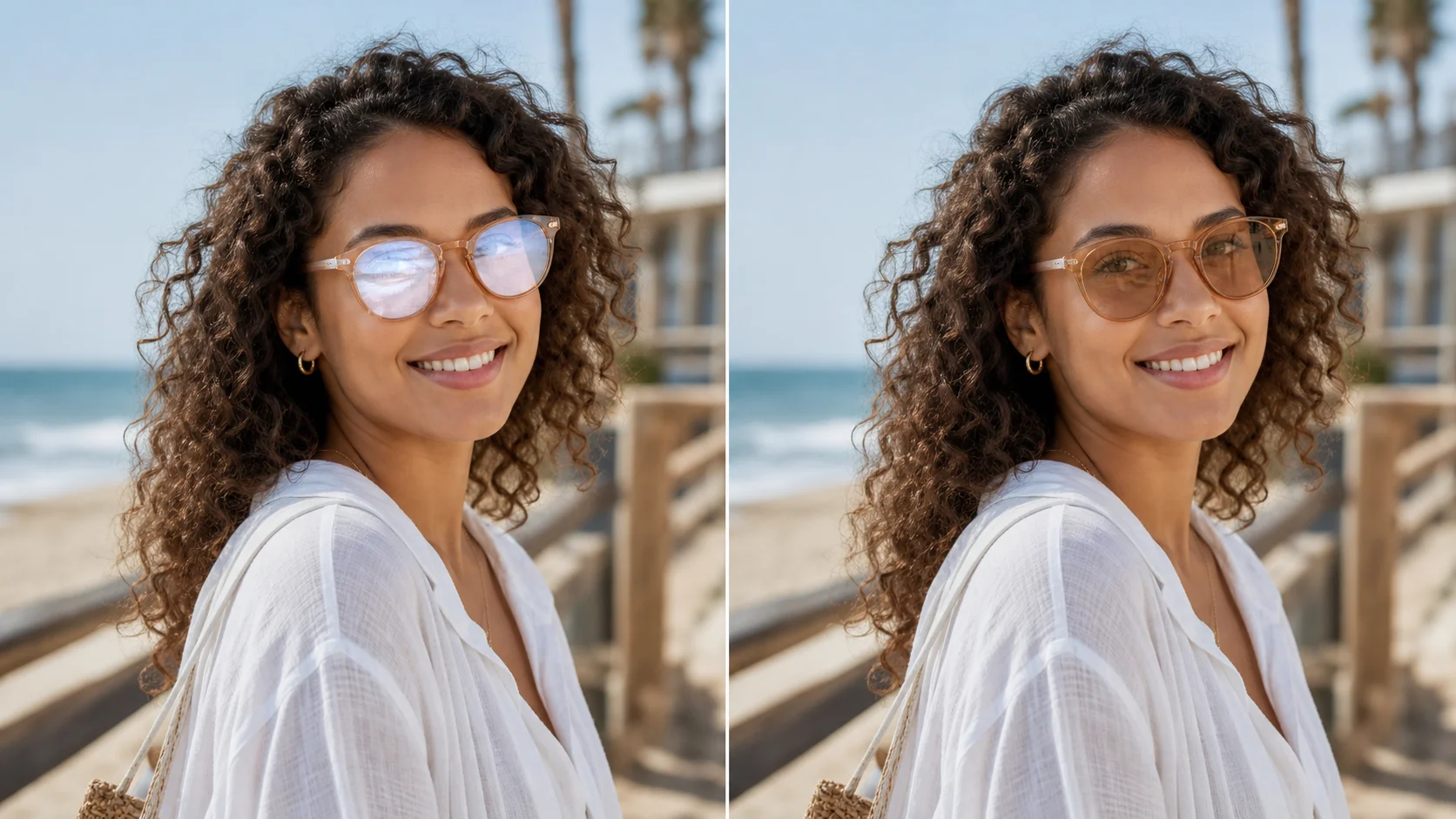
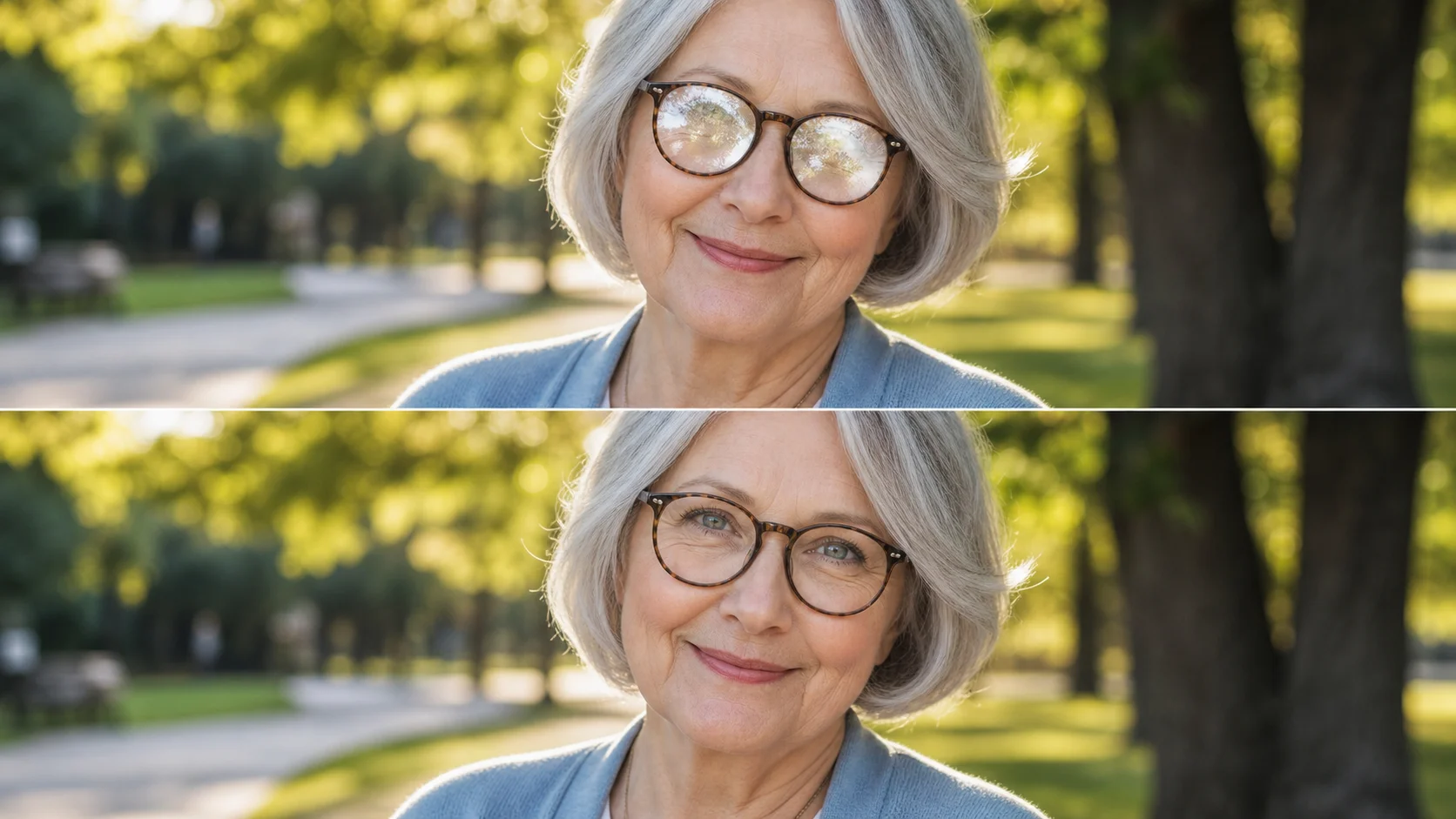
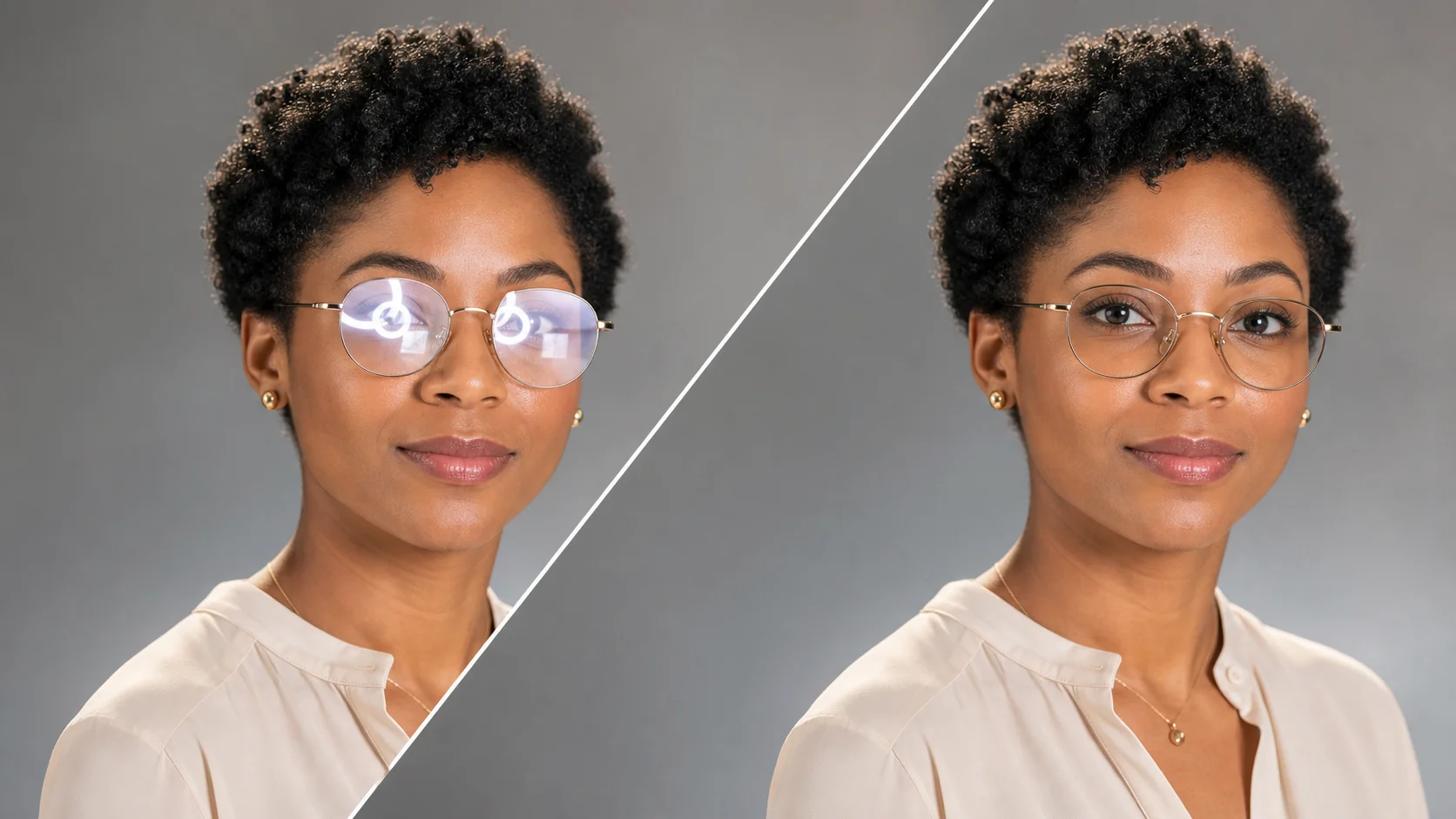
Every campaign starts with a clean asset. When glasses glare blocks the subject's eyes, the visual loses impact before you even begin editing. Upload your photo here and the AI seeds a reflection-free version — removing lens flare, screen bounce, and overhead light wash while keeping the original framing and expression intact. Use the result as your campaign seed for product photos, team headshots, or creative direction boards. Use it as a photo editor to remove glasses glare, fix glasses glare in photo, remove flash from glasses, and take reflection out of glasses after any shoot — studio, outdoor, or video call. When you need to remove glasses glare from photo assets quickly, the same upload becomes a clean visual seed for the rest of your campaign.

Clean assets start with reflection-free source files

Every campaign portrait goes through the same glare detection and removal pipeline for consistent visual quality.

Campaign-ready portrait after removing glasses glare with Seeda AI

Asset-Level Cleanup

Start every campaign with reflection-free source files

Glare on glasses is not just a cosmetic issue — it breaks visual continuity in ads, lookbooks, and team pages. The Seeda AI removes the interference at the asset level so every portrait in your pipeline is clean, consistent, and campaign-ready from the very first export. It also handles hard-to-edit glare from sunglasses, eyeglass glare in group shots, and glasses reflection removal across your entire visual library. Use it whenever you need to remove glasses glare from photo sets without rebuilding the rest of the image.

Asset cleanupCampaign readySource quality
Batch portrait cleanup showing consistent glare removal results across different photos

Batch-Consistent Output

Every portrait gets the same treatment regardless of glare source

Whether your team photos were shot under different lighting or your product shots include reflections from packaging, the model applies a consistent repair strategy across all inputs. The result is a unified visual library where glasses glare is no longer a variable you have to manage.

Batch processingConsistent outputVisual library
Seed and iterate workflow for scaling glasses glare removal across multiple portraits

Fix and Iterate — Get Rid of Glasses Glare at Scale

Clean one portrait, then apply the same direction to others

The first glare-free result becomes your seed visual. Review it, adjust if needed, then use the same processing direction across the rest of your set. This seed-and-iterate approach means you are not tweaking each photo individually — you define the quality bar once and scale from there.

Seed workflowIterateScale output
Workflow

How to remove glasses glare for campaign assets — glasses glare removal online

Clean up portrait assets in four steps so your campaign visuals stay consistent from seed to final delivery, whether you need to remove glasses glare from photo headshots or polish a full team page.

1

Drop a portrait with glare

Pull the photo from your campaign asset folder. It can be a team headshot, a user testimonial photo, or a lifestyle product shot where the model wears glasses.

2

AI removes the reflection

The model scans both lenses, identifies every reflection zone, and reconstructs the covered pixels. The process preserves your original framing and expression so the asset keeps its intent. There is no need to edit glare out of glasses manually — the AI handles the full reconstruction.

3

Review and iterate

Assess the clean asset against your campaign quality bar. The seed approach means the first result sets your standard — review it, refine the prompt if needed, then apply the same direction consistently.

4

Export to your campaign

Download the clean asset and place it directly into your campaign board, website team page, or social creative set. No additional retouching round needed.

Campaign workflow tips for clean portrait assets

Integrate glare removal into your asset pipeline for consistent, professional-quality team and product portraits. Remove specs glare from photo and remove reflection from glasses in photo online for free.

Frequently asked questions about glare removal for campaigns

Answers about how AI glare removal fits into campaign asset workflows and quality control. Use remove glasses glare when lens reflections hide the eyes, wash out the face, or make a headshot look unfinished. The remove glasses glare workflow should keep the same person, pose, expression, frame, and background while reducing reflection. For the cleanest result, remove glasses glare with one clear uploaded photo and ask the model to restore natural eyes, realistic lenses, and believable lighting. Teams use remove glasses glare before profile photos, product founder portraits, classroom images, and creator thumbnails go live. Use remove glasses glare as the exact instruction when the reflection is the main problem, and repeat remove glasses glare in refinements if the lenses still look shiny.


Seed your next campaign with clean portrait assets

Remove glasses glare in one click and build a consistent visual library from the first photo. Start above.